QR asset tags for tools, with a free printable label sheet
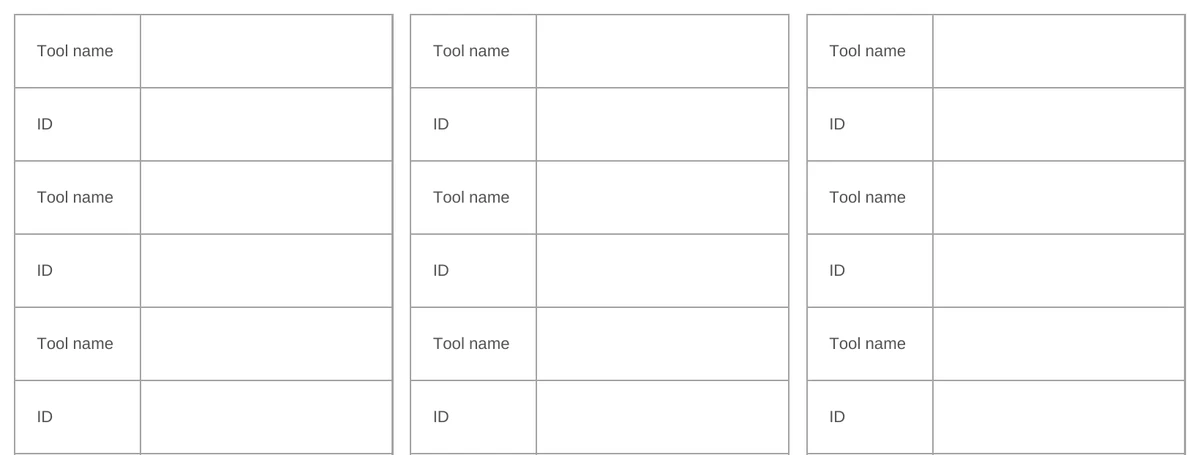
A QR asset tag should open a record, not static details. The free sheet is blank: it has no QR codes and doesn't link to OrbitEquip. Use it to write IDs on tools or to plan a label layout.
Blank sheet, no QR codes. Print it at 100% scale.
What a QR asset tag should link to: a record, not static details
A QR asset tag, or any asset tag with a QR code, is only as useful as the page it opens. A code that opens a fixed page of text, or a PDF of tool details, can't tell a crew who has the tool, when it's due back or what service it needs. Those things change, so the tag has to open a record that changes with them.
In OrbitEquip, each label's QR points to that tool's record. A signed-in crew member scans it from a phone browser to check the tool out or return it, and that check-out or return is written to the record. Someone who scans while signed out sees an OrbitEquip Asset Label card with a log-in button and no asset data. A label from another organization shows a "Label Not in Your Account" card, and a label that has been replaced shows a replaced notice.
A printed sheet of codes from a website can't do this. The website has no access to your tools, so a code printed there opens nothing in your account. That is why scan-ready labels have to come from OrbitEquip, and why the sheet on this page is blank.
Label size for jobsite tools
The free sheet is laid out for 30 labels of 1 × 2-5/8 in on a Letter sheet, the size of Avery 5160 address labels. It uses the same 30-per-sheet, 1 × 2-5/8 in layout as OrbitEquip's Labels page, which prints a QR code with the tool's name and code under it. In our judgment that size suits most hand tools, meters and drill bodies. It isn't tested on every tool.
Very small items, such as bits and sockets, may need a smaller tag or a different surface. Check any size with a test print on plain paper, then a test scan on a phone, before you print a full run.
Label materials
A tool label has to survive dust, oil, rain and whatever cutting fluid is on the bench. The points below are general guidance, not test results. Check each material against its datasheet, and test a label on a real tool before you buy a roll.
- Paper. Fine for a label that stays in a van or a drawer. It rubs off and fails with moisture and solvents.
- Laminated paper. The laminate helps with rubbing. It doesn't stop solvents, and the edges can lift.
- Polyester. A common stock for tool tags. Look for a datasheet that gives the outdoor rating, the temperature range and the fluids it resists. It needs a clean, dry surface, and oily tools can make the adhesive fail.
- Vinyl. Low cost and fine for indoor use or tamper-evident work. It fades in sunlight, so it's a poor choice outdoors.
- Metal. The choice for harsh sites and long service. It costs more and takes longer to make. Ask a supplier whether the marking process affects the finish.
A vendor's durability claim is marketing until you have tested it on your own tools. Whichever material you choose, the label size on the free sheet stays the same.
Print the free sheet at home
The blank sheet is a layout template for QR asset tags: an Excel file with 30 labels. Each label has a Tool name line and an ID line to write on. Write IDs on your tools today, or use the sheet to plan a label layout before you order stock.
The sheet has no QR codes and no link to your tools, so it can't check a tool in or out. Those steps need labels from OrbitEquip.
- Download the XLSX file and open the Label sheet tab. The How to print tab has the same steps.
- Print the Label sheet tab on plain paper at 100%. In the print settings, choose No Scaling. Don't choose Fit Sheet to One Page.
- Hold the test page against your label sheet and check that the outlines line up. Printers differ, so do this before you print on label stock.
- Print the full run once the test lines up.
The sheet is not matched to any brand's stock. The test print is the check.
Print QR labels in OrbitEquip
Scan-ready labels come from the Labels page in OrbitEquip. Each label prints a QR code for one tool, with the tool's name and code under it, on the same 30-per-sheet layout. Labels are available on the Free plan, which covers up to 25 tools.
- Open Labels in OrbitEquip. Search by name, or filter by status, category or location.
- For one tool, use the print button on its card on the Labels page, or choose Print label on the tool's page.
- For several tools, choose Print all labels (N). With a filter on, the button reads Print filtered (N).
- Choose the label layout. Standard is the default. Branded adds a strip above the name and code, with a little white space around the QR.
- Print from the browser's print dialog, which opens with the labels selected. Print a test page on plain paper first, as you would with the free sheet.
Want to try it on your own tools? Start a free account, add a tool, then print its label from Labels.
Manufacturer barcodes you already have
Some tools already carry a barcode from the manufacturer. You can save that number on the tool record as its existing barcode. The OrbitEquip QR stays the main identifier, and the existing barcode is a second way to find the tool.
- Type or paste the number into the Existing barcode field on the tool. The field takes up to 200 characters, and each value must be unique within your account.
- The camera in that field reads 1D barcodes only: Code 128, Code 39, EAN-13, EAN-8, UPC-A, UPC-E and ITF. For any other code, type or paste the number.
- Once it's saved, Scan can find the tool by that value.
Frequently asked questions
Should a QR asset tag link to a record or to a web page?
To a record. A web page of fixed details can't show who has a tool, when it's due back or what service it needs. In OrbitEquip, each label's QR opens that tool's record for signed-in crew members, and a check-out or return is written to it.
What size fits a drill or a meter?
The free sheet's labels are 1 × 2-5/8 in, the size of Avery 5160 address labels. In our judgment that suits most drill bodies and meter cases, but it isn't tested on every tool. Print one label on plain paper and hold it against the tool before you print a full run.
Can I print QR asset tags on paper?
Paper works for indoor use, such as a drawer or a shelf in a van. It rubs off and fails with moisture and solvents, so tools that go outdoors or get oily need a tougher stock. The materials section covers the options.
Do I need an account to use the sheet?
No. The blank sheet is a free download with no sign-up form, and you can write IDs on it today. Scan-ready QR labels need an OrbitEquip account, because each code has to point to a tool record in your account.
Can I use the barcode the manufacturer printed on a tool?
Yes, as a second identifier. Type or paste its number into the Existing barcode field on the tool. The camera in that field reads 1D barcodes only, and the OrbitEquip label stays the main identifier.