Free Check In Check Out Sheet for Tools and Equipment
Know who has each tool, when it's due back, and which ones came back needing repair. One sign-out log with a Dashboard that counts what's out and what's overdue, and a print page for the counter.
No email needed. Works in Excel and Google Sheets.
What's in the file
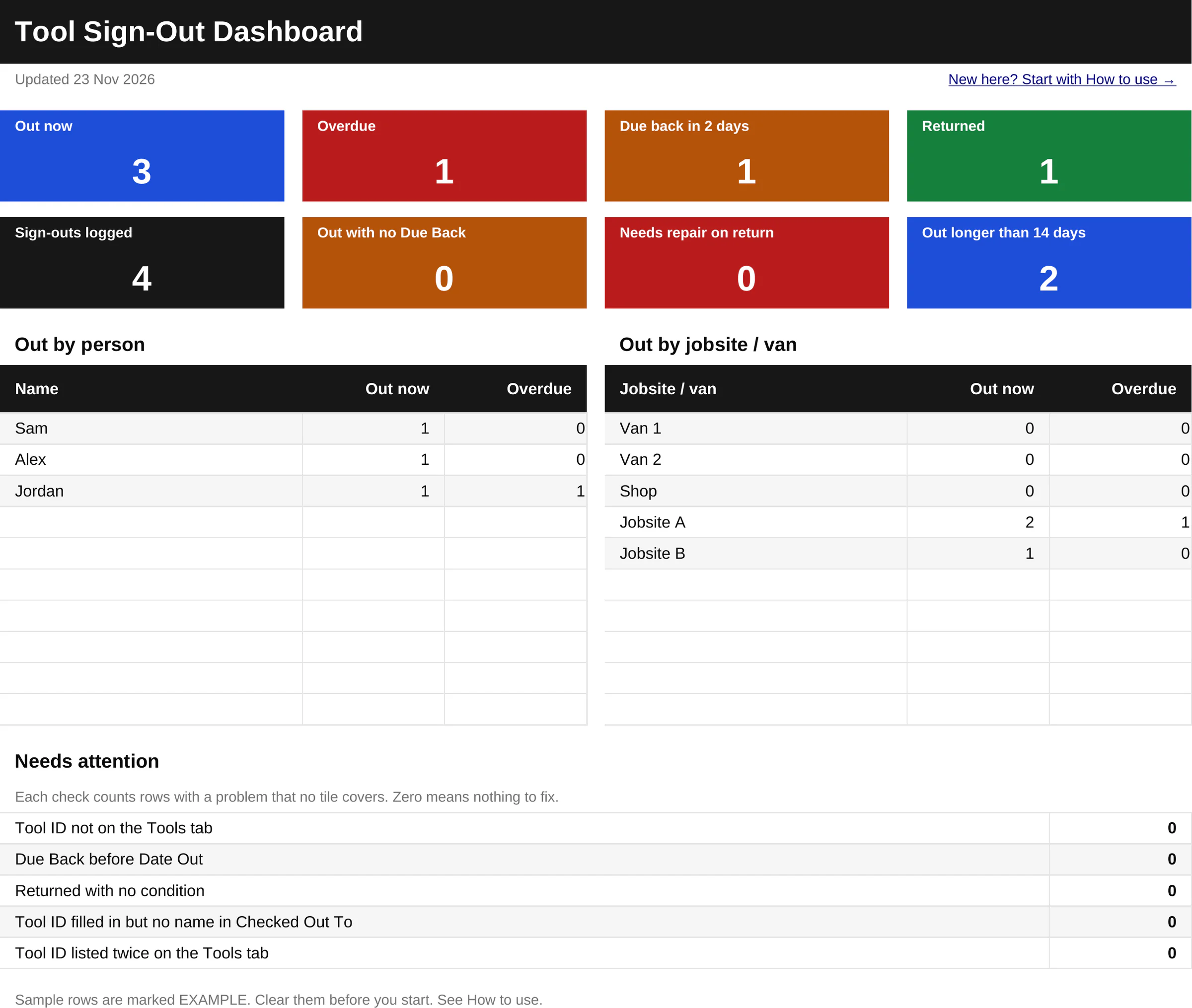
One file, six tabs. Keep the Tools tab current, log every check-out and return on the Sign Out Log, and read the Dashboard for what's out.
- Dashboard: counts for the whole log: out now, overdue, due back in 2 days, returned, and out longer than 14 days. Breakdowns by person and by jobsite or van, and a Needs attention list.
- How to use: setup in about 10 minutes, the colors and tips. It prints in portrait.
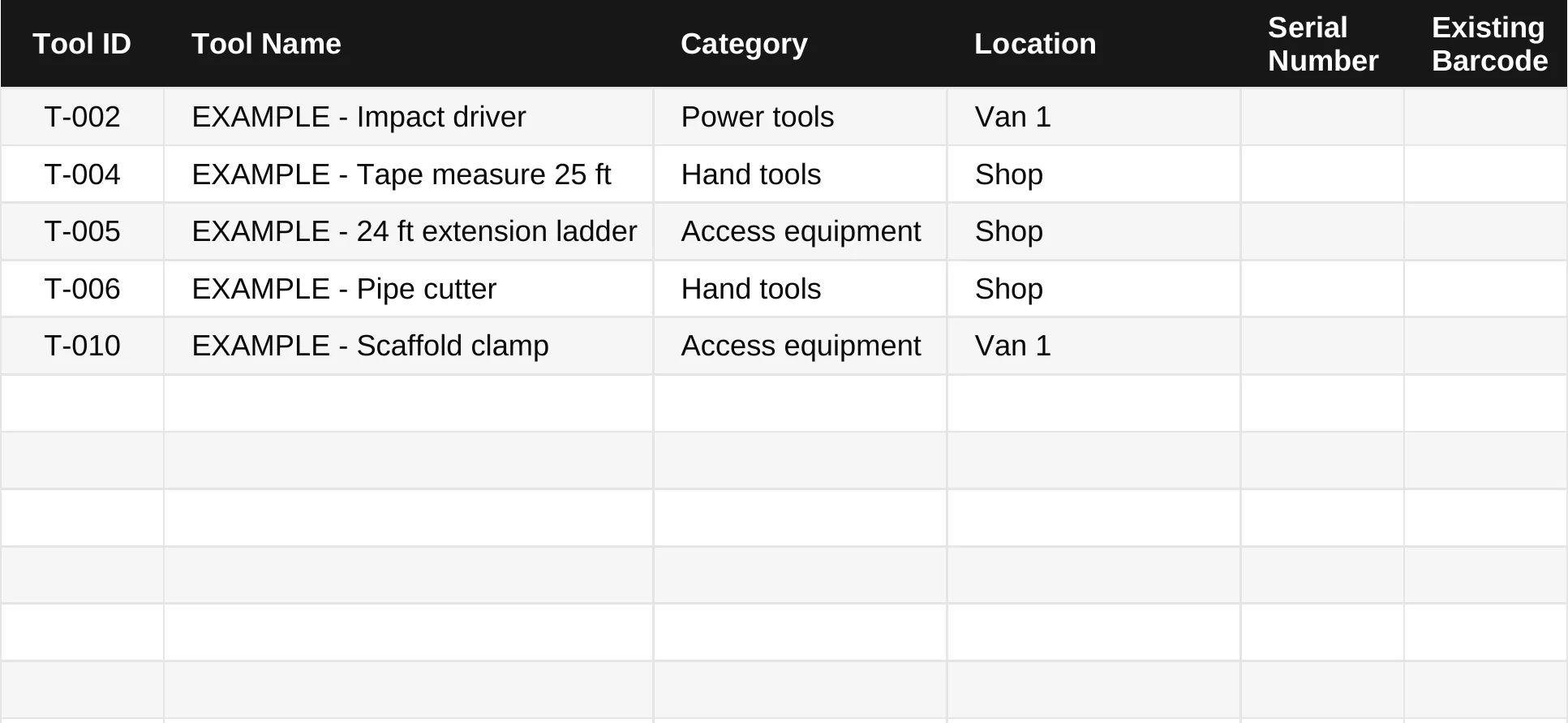
- Tools: the register of tools, with Tool ID, Tool Name, Category, Location, Serial Number and Existing Barcode. The Tool ID dropdown reads it.
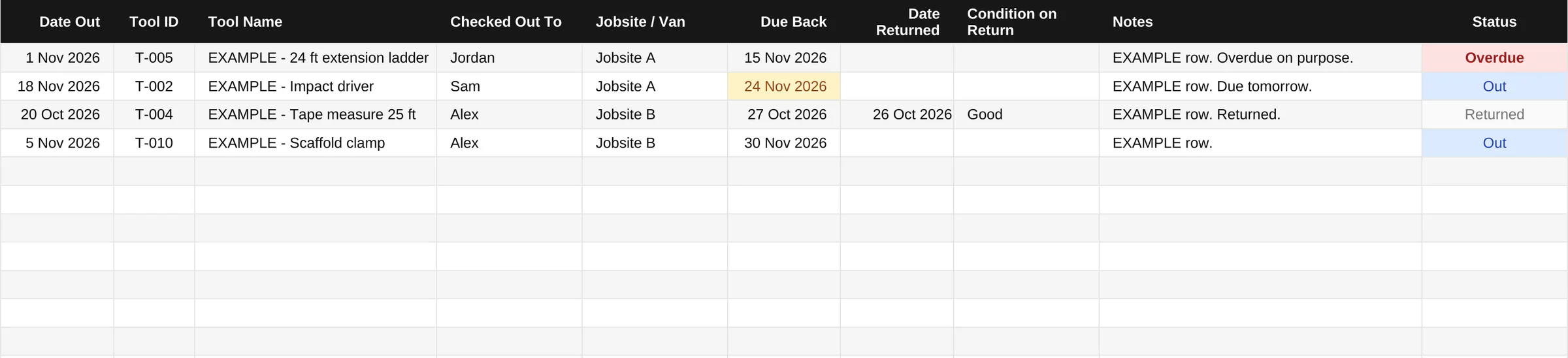
- Sign Out Log: one row per check-out, with 10 columns and four dropdowns: Tool ID, person, jobsite or van, and condition. Status is a formula.
- Print Sheet: the same core columns on one landscape page, with 25 blank lines for the counter.
- Lists: the people, jobsites and vans, and conditions behind the dropdowns. Edit them here.
Inside the sheet
The Tools tab sets each Tool ID once. The Sign Out Log reads that list, so a check-out is a pick from a dropdown, and the tool's name fills in by itself.
How to set it up
- Download the spreadsheet and open it in Excel or Google Sheets.
- On Lists, swap the sample people, jobsites and vans for your own.
- On Tools, list each tool once with its Tool ID and name. Then delete the EXAMPLE rows on Tools and Sign Out Log.
- When a tool leaves, add a row to Sign Out Log: pick the Tool ID, then add the person, the jobsite or van, and the due date if one is agreed.
- When the tool comes back, enter the date returned and the condition. Status changes to Returned.
What the sheet records
- One row per check-out: record the Tool ID, the person or job, the jobsite or van, the due date and the date returned.
- Tool names from a register: the Tools tab lists each tool once, and Tool Name fills in on the log from its Tool ID.
- An overdue flag: a Status column shows Out, Overdue or Returned. Overdue appears when the due date has passed and nothing is in Date Returned.
- A Dashboard: tiles count what's out now, what's overdue, what's due back in 2 days and what has been out longer than 14 days.
- A print tab for the counter: the Print Sheet gives blank lines for the counter, the van or the job box.
- Condition on return: record Good, Fair or Needs repair when the tool comes back.
When a QR system beats paper
A sheet is the right tool for a few shared items and one or two people. It starts to fail when many tools move between crews, when returns get missed, or when you need one tool's history without reading every row. OrbitEquip replaces the sheet with a QR label on each tool. Crew members take a tool by scanning its label. An owner or admin checks it out to a name, and anyone can return it. The record keeps the holder, the due date and the history. Equipment checkout software covers the scan, return and overdue workflow.
If you label your tools and want the whole routine in one place, read the guide to tracking tools on jobsites. For a blank label layout to print at home, see the blank label sheet.
Moving from the sheet to OrbitEquip
Save the Tools tab as a CSV, once the EXAMPLE rows are gone. An Owner or Admin can import it from the Tools page, within the 25-tool limit on Free. Each import takes up to 5,000 rows, within your plan's tool limit. Import brings in tool records, not sign-out rows. Import Tools from CSV covers the column mapping and the import summary. You can also start from the free tool inventory template.
The Sign Out Log doesn't import as custody history. Keep the sheet as a reference for past check-outs.
Good fit and not a fit
Good fit
- You share a few tools between a small crew and need a free log to start.
- You want a print tab for the shop counter or the truck.
- You're not ready to label tools yet.
Not a fit if you need
- Live location or GPS. A sheet records what someone wrote, not where a tool is. OrbitEquip doesn't use GPS, Bluetooth or RFID either.
- Automatic reminders. The sheet sends no emails. OrbitEquip sends checkout reminder emails, on the Free plan too.
Frequently asked questions
Is the check in check out sheet free?
Yes. Download the spreadsheet at no cost, with no email form. Keep your own copy and edit it to fit your crew. Nothing is locked.
Do I need Excel?
No. It works in Excel and in Google Sheets. Make your own copy before you edit it, and delete the EXAMPLE rows before you use it. Google Sheets uses its own print settings, so check the print preview there.
How do I see what's overdue?
Open the Dashboard tab. The Overdue tile counts rows past their due date with nothing in Date Returned. The Out by person and Out by jobsite / van tables show who has each tool, and the Status column on Sign Out Log shows each row.
How do I add a tool?
Add it on the Tools tab first, with its Tool ID and name. The Tool ID dropdown on Sign Out Log reads that list, and Tool Name fills in from it.
How do I add a person, jobsite or van?
Add it on the Lists tab, in the next empty cell of the matching column. The dropdowns on Sign Out Log use the new name straight away. You can also type a name that isn't on the list, but adding it to Lists keeps the dropdowns tidy.
Can I print it?
Yes. The Print Sheet tab prints on one landscape page, with 25 blank lines and the header row repeated. The Sign Out Log prints one landscape page of 30 lines. To print more of the log, select the rows you need and choose Print Selection in the print settings. Print a fresh copy each week if the counter gets crowded.
Does it send reminders or track location?
No. The sheet doesn't send emails or use GPS. It records what someone typed in, so a tool's location is only as current as the last row. OrbitEquip sends checkout reminder emails, on the Free plan too, and doesn't use GPS, Bluetooth or RFID either.
Can I use the sheet with OrbitEquip?
You can import your tool list. Save the Tools tab as a CSV and import it from the Tools page. Sign-out rows don't import as custody history, so keep the sheet as a reference for past check-outs. For check-outs with history, use OrbitEquip's scan workflow once your tools have labels.
When should I switch to a QR system?
When the sheet is missing returns or you can't tell who has a tool. A useful test is whether you can answer "who has the impact driver right now?" in under ten seconds. If you can't, the sheet has stopped doing its job.