Free Equipment Inventory Template
A free tool inventory template for tracking tools and equipment: where each item is, who has it, when it's due back, and when it needs service.
No email needed. Works in Excel and Google Sheets.
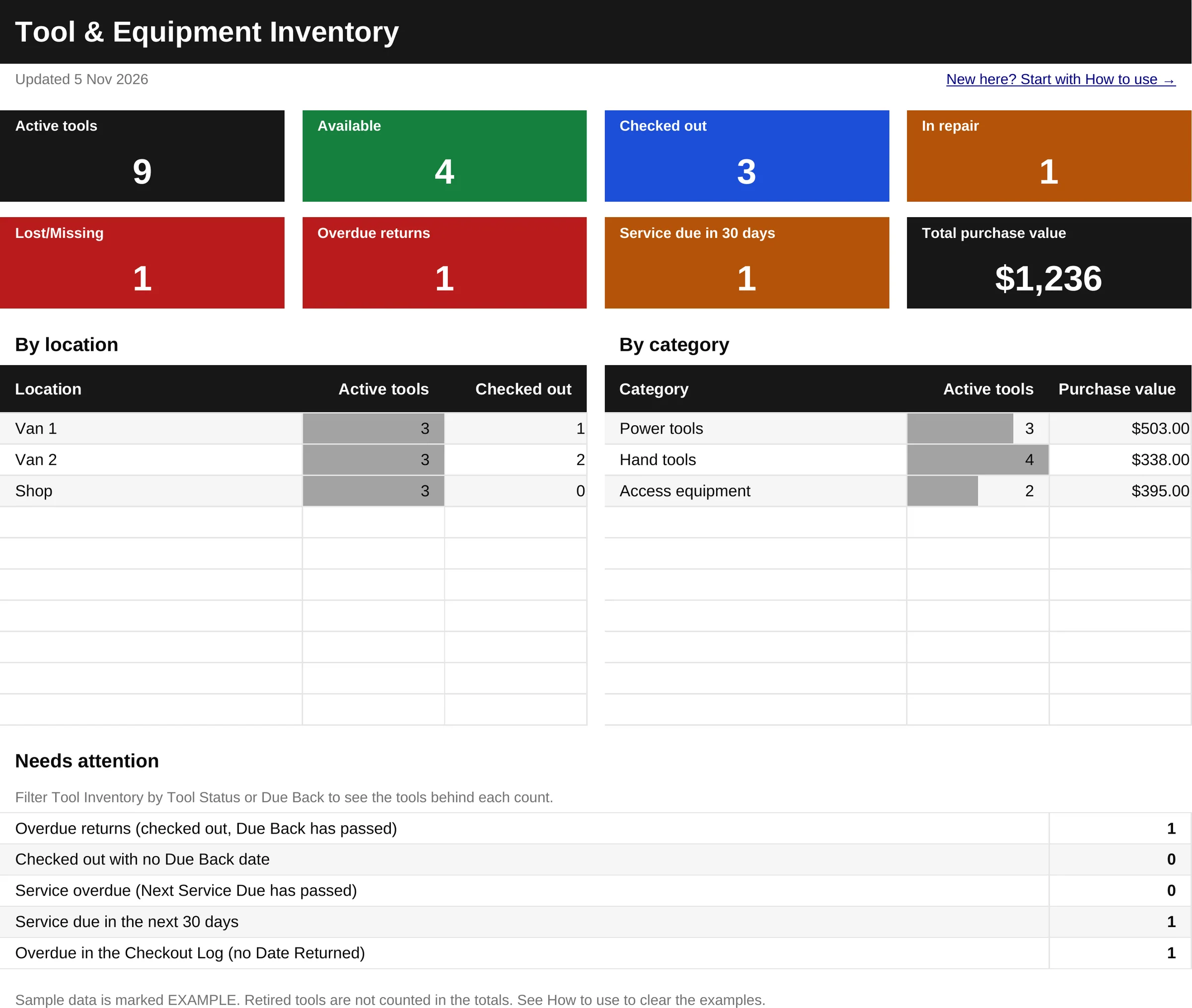
What's in the workbook
One file, six tabs. Use it as a full tracker or as a simple equipment list template.
- Dashboard: totals, overdue returns, service dates, and counts by location and category.
- Tool Inventory: one row per tool, with dropdowns and colors for status and due dates.
- Checkout Log: who took each tool, where it went, when it was due back, and when it came back.
- Maintenance Log: each service or repair, who did it, what it cost, and when the next one is due.
- Lists: the categories, locations, people, statuses and conditions behind the dropdowns. Edit them here.
- How to use: a 5-minute setup guide, a color legend and tips.

How to set it up
- On Lists, replace the sample categories, locations and people with your own.
- Clear the examples. On Tool Inventory, Checkout Log and Maintenance Log, select the rows marked EXAMPLE and delete them.
- Add each tool on Tool Inventory. Give it an ID and a name, then fill in what you know.
- When a tool leaves the shop, add a row to the Checkout Log: the date, the tool ID, who has it, where it's going and when it's due back.
- When it comes back, enter the date returned on the Checkout Log, and set the tool's status back to Available on Tool Inventory.
- After a service or repair, add a row to the Maintenance Log, and update Last Service and Next Service Due on Tool Inventory.
- Check the Dashboard once a week, and start with Needs attention.
What to track for each tool, and why
- ID and label: a short ID on a label makes a tool quick to find and log.
- Serial number: needed for theft reports, insurance claims and warranty claims.
- Location and holder: shows where a tool should be and who has it now.
- Due-back date: flags a checked-out tool before it becomes a missing one.
- Condition: shows what needs repair before someone grabs it for a job.
- Service dates: keep safety and maintenance checks from slipping.
- Purchase cost: gives you a value for insurance and replacement budgets.
Tips that make a tool list work
- Give every tool an ID label.
- Have one person own the list.
- Agree on a check-out rule for the crew: no tool leaves without a Checkout Log row.
- Do a monthly count: walk each location and compare what's there with the list.
- Retire lost or scrapped tools instead of deleting them, so the history stays.
Frequently asked questions
Is it free?
Yes. You can download and use the workbook at no cost. There's no email form.
Do I need Excel?
No. It works in Excel and Google Sheets. To use it in Google Sheets, upload the XLSX file to Google Drive and open it with Google Sheets. Check the Dashboard after uploading, because some formatting can look different there.
How do I add categories or locations?
Add them on the Lists tab, in the next empty cell of the Categories or Locations column. The dropdowns on Tool Inventory use them straight away, up to 10 categories and 10 locations. The Dashboard breakdowns show up to 10 categories and 10 locations.
How does the overdue flag work?
A tool is overdue when its status is Checked out and its Due Back date has passed. The date turns red on Tool Inventory, and the Dashboard counts it. A checked-out tool with no Due Back date isn't counted as overdue. The Dashboard lists it under Needs attention instead.
Can I track consumables?
Not really. The workbook is built for tools and equipment that go out and come back. It doesn't count stock, so it isn't the right tool for things like screws, tape or fuel.
Can I print it?
Yes. Every tab is set to fit one page wide when you print. Five of them print in landscape, and How to use prints in portrait.
Can I import it into OrbitEquip?
Yes. Save the Tool Inventory tab as a CSV file. In OrbitEquip, owners and admins go to Assets, select Import, and upload the file. Six columns match OrbitEquip fields automatically. Set the other columns to Do not import, delete the example rows first, and follow the CSV import guide for the full steps.
When a spreadsheet isn't enough
A spreadsheet only knows what someone last typed in. It can't show who had a tool last week, or whether it came back on time, unless someone keeps it up to date. OrbitEquip is one option for keeping that record, with QR check-outs from a phone browser.