Free Equipment Maintenance Log Template
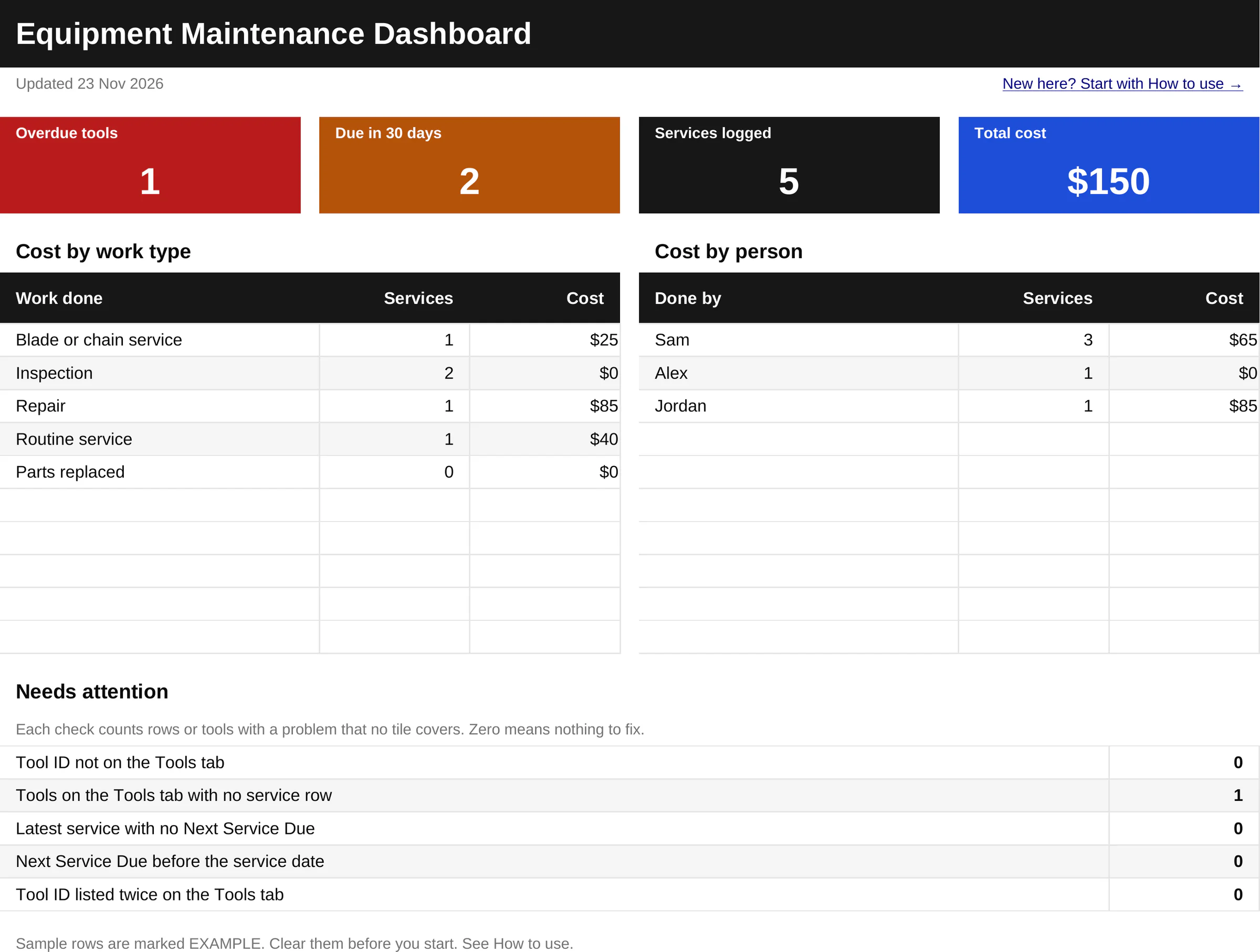
Know which tools are due for service before they fail. Log each service, who did it and the next due date. The Dashboard counts what's overdue and what's due in 30 days.
No email needed. Works in Excel and Google Sheets.
What's in the file
One file, five tabs. List each tool once on Tools, add a row for every service on the Maintenance Log, and read the Dashboard for what's overdue.
- Dashboard: overdue tools, tools due in 30 days, services logged and total cost. Cost by work type and by person, and a Needs attention list.
- How to use: setup in about 10 minutes, the colors and tips. It prints in portrait.
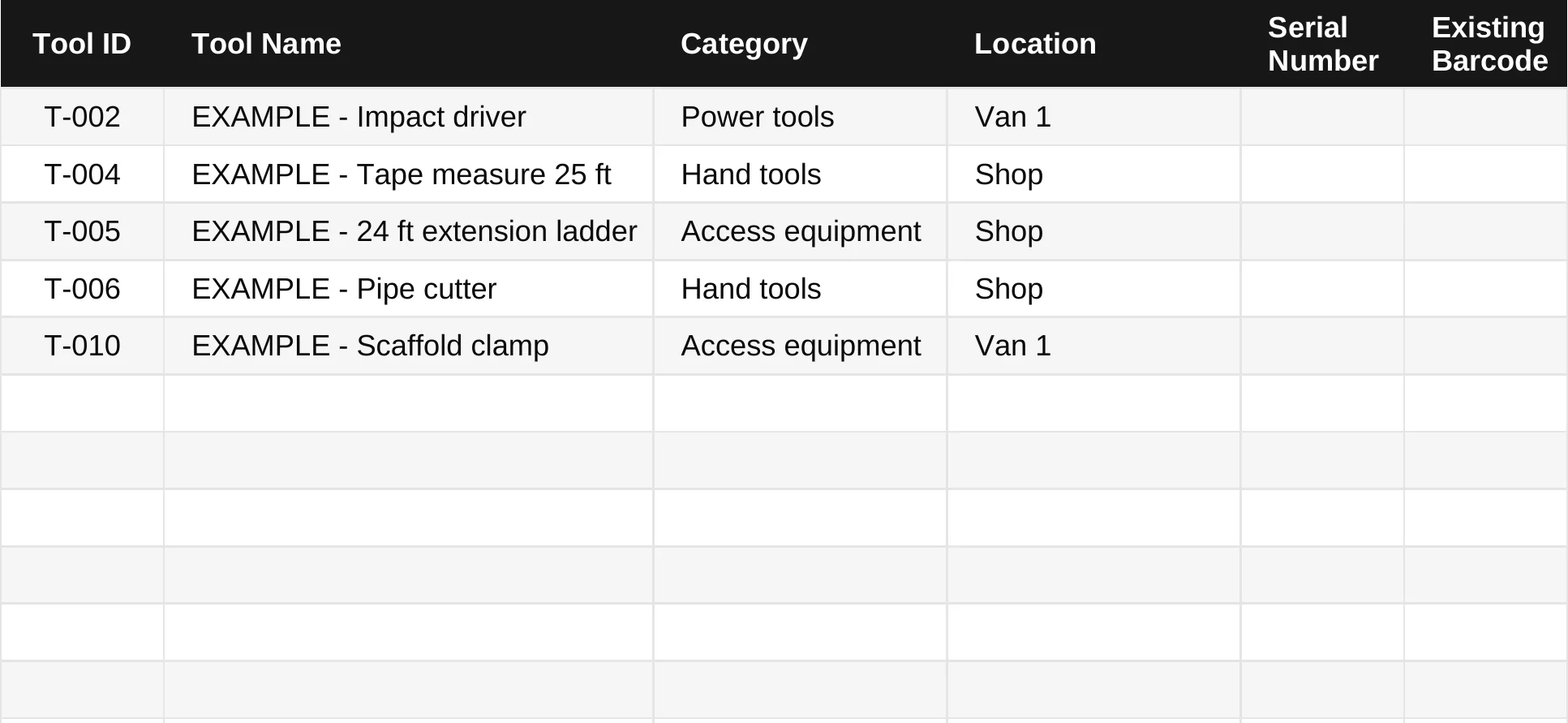
- Tools: the register of tools, with Tool ID, Tool Name, Category, Location, Serial Number and Existing Barcode. The Tool ID dropdown reads it.
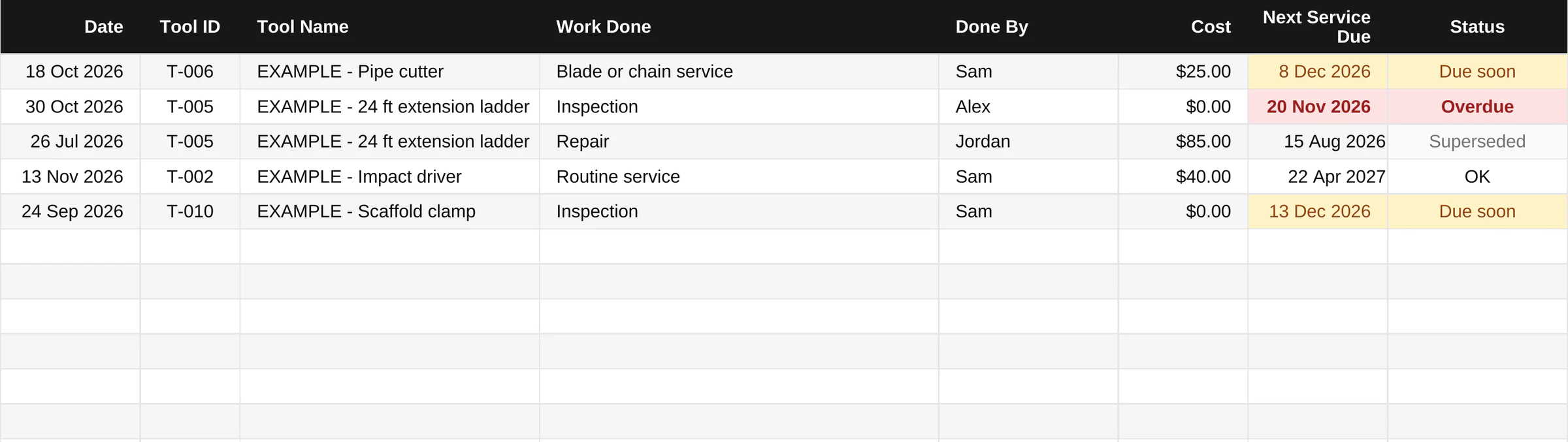
- Maintenance Log: one row per service, with dropdowns for the Tool ID, the work done and who did it. Status shows the latest service's flag.
- Lists: the people and types of work behind the dropdowns. Edit them here.
Inside the log
The Tools tab sets each Tool ID once. The Maintenance Log reads that list, so a service row is a pick from a dropdown, and the tool's name fills in by itself.
How to set it up
- Download the spreadsheet and open it in Excel or Google Sheets.
- On Lists, replace the sample people and types of work with your own.
- On Tools, list each tool once with its Tool ID and name. Then delete the EXAMPLE rows on Tools and Maintenance Log.
- Add a row for each service on the day the work is done. Only the latest service for each tool gets a flag.
- Check the Dashboard at the start of each week, then the amber and red rows.
What the log tracks
- The service record: record the Tool ID, the date, the work done, who did it and the cost.
- A next-due date: enter the next service date. The latest service for each tool turns amber 30 days ahead and red once it has passed.
- A status in words: the Status column says Overdue, Due soon, OK or Superseded. Older services for a tool show Superseded, so only the latest one is flagged.
- A Dashboard: counts overdue tools and tools due in 30 days, with services logged, total cost and cost by work type.
- Prints for the shop wall: the Maintenance Log prints one landscape page of 30 lines, for the shop wall or the tool crib.
When a log stops being enough
A spreadsheet is the right tool for a few machines and a short list of services. It starts to fail when service runs across many machines and several people, when crews need to report a problem from the field with a photo, or when you want reminder emails for due service instead of a file someone has to open. OrbitEquip keeps maintenance on each tool's record. Crews report issues with an optional photo. Creating new recurring schedules and maintenance reminder emails are on Starter and higher plans. Equipment maintenance tracking software covers issue reports, one-time work and recurring schedules.
Moving from the log to OrbitEquip
Save the Tools tab as a CSV, once the EXAMPLE rows are gone. An Owner or Admin can import it from the Tools page, within the 25-tool limit on Free. Each import takes up to 5,000 rows, within your plan's tool limit. Import brings in tool records, not past service rows, so keep the log as a reference. Import Tools from CSV covers the column mapping and the import summary.
Good fit and not a fit
Good fit
- You service a few machines on a schedule set by date.
- You want a free log to start before you buy a system.
- You want the log printed on one landscape page for the shop wall or the tool crib.
Not a fit if you need
- Meter or engine-hour service. Schedules in OrbitEquip run on dates, not hours or meter readings.
- Parts inventory or full work-order management. This is a service log, not a CMMS.
- GPS or location tracking. A log records what was done, not where a machine is. OrbitEquip doesn't use GPS, Bluetooth or RFID either.
Frequently asked questions
Is the equipment maintenance log free?
Yes. Download the spreadsheet at no cost, with no sign-up form. Make your own copy before you edit it. Example rows are marked EXAMPLE, so delete them before use.
Do I need Excel?
No. It works in Excel and in Google Sheets. Make your own copy before you edit it, and check the Dashboard after you add your first service. Google Sheets uses its own print settings, so check the print preview there.
How do I see what's overdue?
Open the Dashboard tab. Overdue tools counts each tool once, from its latest service. The Needs attention list shows tools with no service row yet and rows with no Next Service Due date.
How do I know when a service is due?
Enter the next service due date on each row. The latest service for each tool turns amber 30 days before that date and red once it has passed. Older services for the same tool show Superseded, so only the latest one is flagged. The flags update when someone opens the file, so review the Dashboard at a set time each week.
Can I log hours or meter readings?
Not in this log. The Next Service Due column uses dates. If your service plan depends on engine hours, keep that reading in the machine's own log, and note it in Work Done.
Can I print it?
Yes. The Maintenance Log prints one landscape page of 30 lines. To print more, select the rows you need and choose Print Selection in the print settings. The How to use tab prints in portrait. A printed copy works well on the shop wall, but keep the spreadsheet as the master so the dates stay current.
What's the difference between this log and OrbitEquip?
The log is a spreadsheet you update by hand. OrbitEquip keeps maintenance on each tool's record, takes issue reports with an optional photo from the field, and schedules work by date. Creating recurring schedules and reminder emails are on Starter and higher plans.
Does it send reminders?
No. The flags show only when someone opens the file. OrbitEquip sends maintenance reminder emails on Starter and higher plans, for eligible scheduled work.
When should I switch from the log?
When flags get missed, when crews need to report problems from the field, or when more people need the same service record. A useful test is whether someone can tell you the next service date for every machine in under five minutes.